> ## Documentation Index
> Fetch the complete documentation index at: https://docs.tixfix.ai/llms.txt
> Use this file to discover all available pages before exploring further.
# Feature your sponsors
> Show sponsor logos and links on your event page
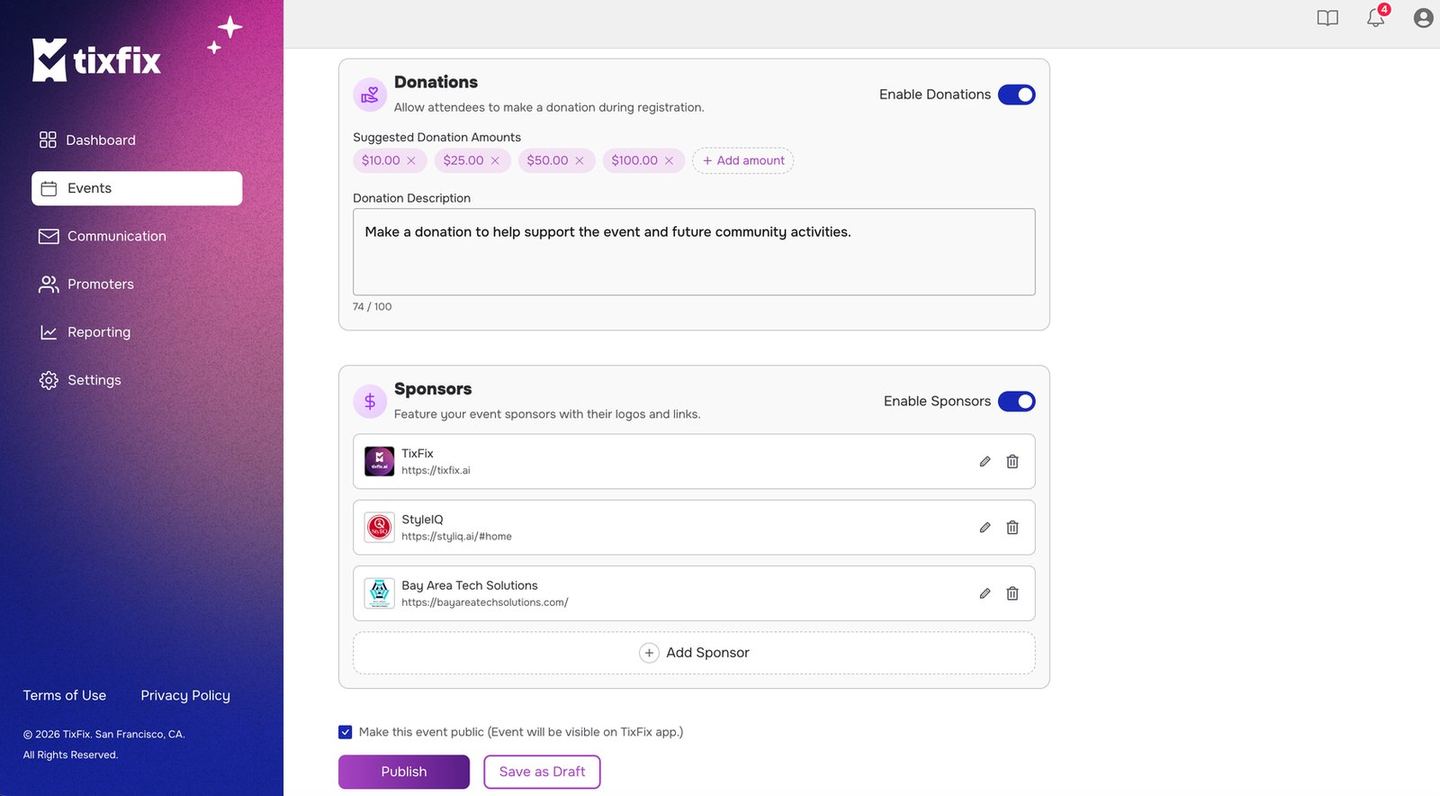
Sponsors let you put the businesses backing your event on the event page, each with a logo and a link to their site. For a community event, this is often what the sponsorship money is actually buying.
The block sits on the second step of the event wizard, directly below [Donations](/events/donations).
 ***
## Turn on sponsors
From `Events`, open the event's `⋯` menu, choose `Edit`, and click `Update and Continue` to reach the **Almost There!** screen.
It reads *Feature your event sponsors with their logos and links.*
The list and the `Add Sponsor` control appear.
***
## Add a sponsor
***
## Turn on sponsors
From `Events`, open the event's `⋯` menu, choose `Edit`, and click `Update and Continue` to reach the **Almost There!** screen.
It reads *Feature your event sponsors with their logos and links.*
The list and the `Add Sponsor` control appear.
***
## Add a sponsor
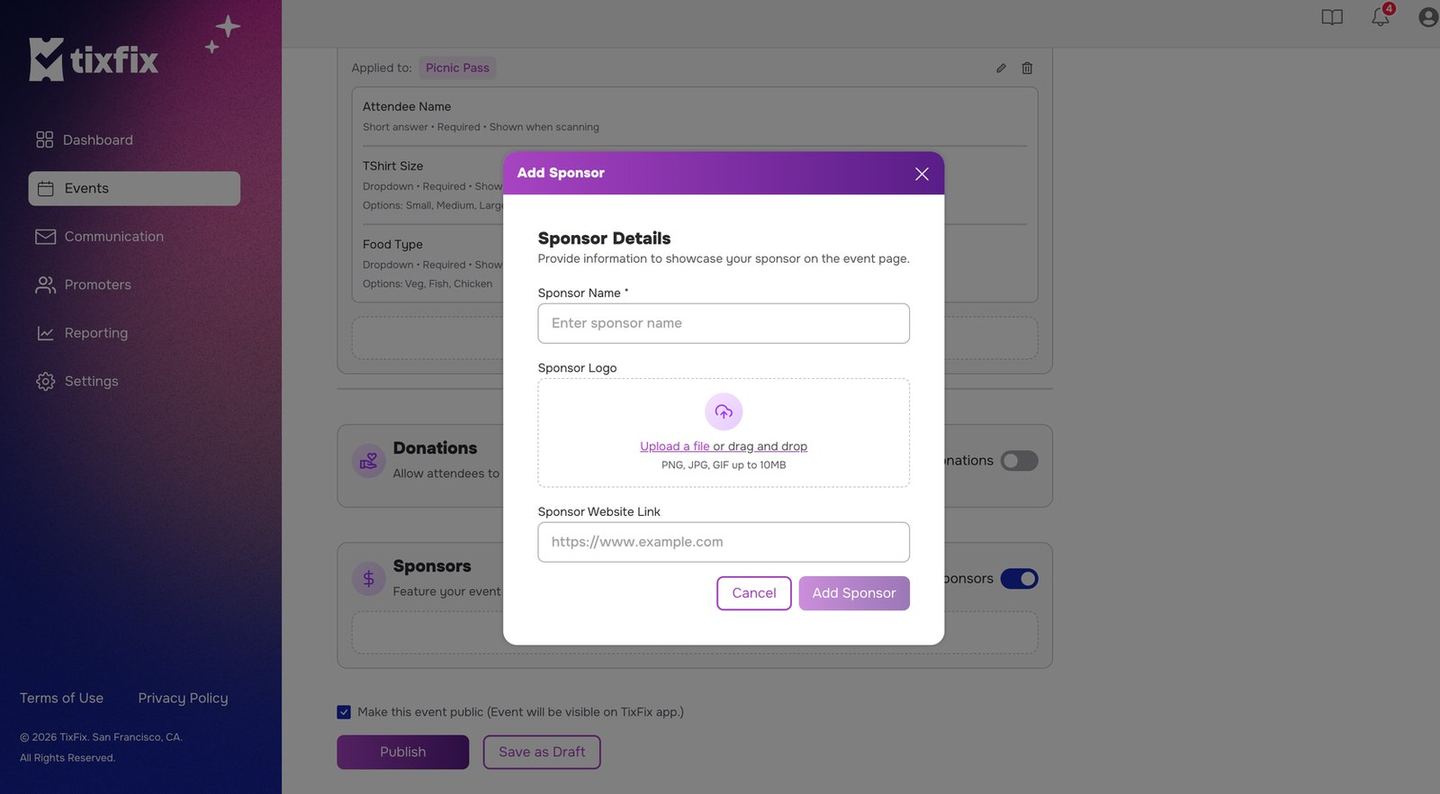 The **Sponsor Details** dialog opens: *Provide information to showcase your sponsor on the event page.*
`Sponsor Name` is the only required field. Use the name the sponsor uses publicly, not an internal shorthand.
Drag a file in or click `Upload a file`. **PNG, JPG or GIF, up to 10 MB.**
`Sponsor Website Link` takes a full URL, for example `https://www.example.com`. This is what a sponsor gets most value from, so it is worth chasing.
They appear in the list with their logo, name and URL. A pencil edits an entry and a trash icon removes it.
***
## Getting the logos right
A sponsor logo is supplied by someone else, which means it arrives in whatever shape they had to hand.
* **Ask for a square or near-square file.** The list renders logos in a small square tile, so a wide banner logo shrinks to something unreadable.
* **Prefer PNG with a transparent background.** A JPG carries a white box that shows against the tile.
* **Check it at actual size**, not zoomed in. If you cannot read the name in the list, neither can an attendee.
* **Keep well under 10 MB.** A large file slows the event page for people on phones at a venue.
Ask every sponsor for their logo and URL in the same message you confirm the
deal. Chasing assets the week of the event is the usual way sponsors end up
missing from the page they paid to be on.
***
## Sponsors and the rest of the event
Sponsors are per event, not per organizer. A sponsor backing three of your events is added to each one, which also means you can list different sponsors for different events without them bleeding across.
The block sits alongside two other optional additions on the same step:
| Block | What it adds |
| ---------------------------------------------- | ---------------------------------------------- |
| [Donations](/events/donations) | Attendees can give an extra amount at checkout |
| **Sponsors** | Sponsor logos and links on the event page |
| [Registration form](/events/registration-form) | Extra questions asked at checkout |
None of them are required to publish. See [Publish and visibility](/events/publish-and-visibility) when you are ready to go live.
Still stuck? Email [contact@tixfix.ai](mailto:contact@tixfix.ai) with your event name and a screenshot.
The **Sponsor Details** dialog opens: *Provide information to showcase your sponsor on the event page.*
`Sponsor Name` is the only required field. Use the name the sponsor uses publicly, not an internal shorthand.
Drag a file in or click `Upload a file`. **PNG, JPG or GIF, up to 10 MB.**
`Sponsor Website Link` takes a full URL, for example `https://www.example.com`. This is what a sponsor gets most value from, so it is worth chasing.
They appear in the list with their logo, name and URL. A pencil edits an entry and a trash icon removes it.
***
## Getting the logos right
A sponsor logo is supplied by someone else, which means it arrives in whatever shape they had to hand.
* **Ask for a square or near-square file.** The list renders logos in a small square tile, so a wide banner logo shrinks to something unreadable.
* **Prefer PNG with a transparent background.** A JPG carries a white box that shows against the tile.
* **Check it at actual size**, not zoomed in. If you cannot read the name in the list, neither can an attendee.
* **Keep well under 10 MB.** A large file slows the event page for people on phones at a venue.
Ask every sponsor for their logo and URL in the same message you confirm the
deal. Chasing assets the week of the event is the usual way sponsors end up
missing from the page they paid to be on.
***
## Sponsors and the rest of the event
Sponsors are per event, not per organizer. A sponsor backing three of your events is added to each one, which also means you can list different sponsors for different events without them bleeding across.
The block sits alongside two other optional additions on the same step:
| Block | What it adds |
| ---------------------------------------------- | ---------------------------------------------- |
| [Donations](/events/donations) | Attendees can give an extra amount at checkout |
| **Sponsors** | Sponsor logos and links on the event page |
| [Registration form](/events/registration-form) | Extra questions asked at checkout |
None of them are required to publish. See [Publish and visibility](/events/publish-and-visibility) when you are ready to go live.
Still stuck? Email [contact@tixfix.ai](mailto:contact@tixfix.ai) with your event name and a screenshot.