> ## Documentation Index
> Fetch the complete documentation index at: https://docs.tixfix.ai/llms.txt
> Use this file to discover all available pages before exploring further.
# Account security
> Set a password, turn on two-factor authentication, and understand what deleting your account does
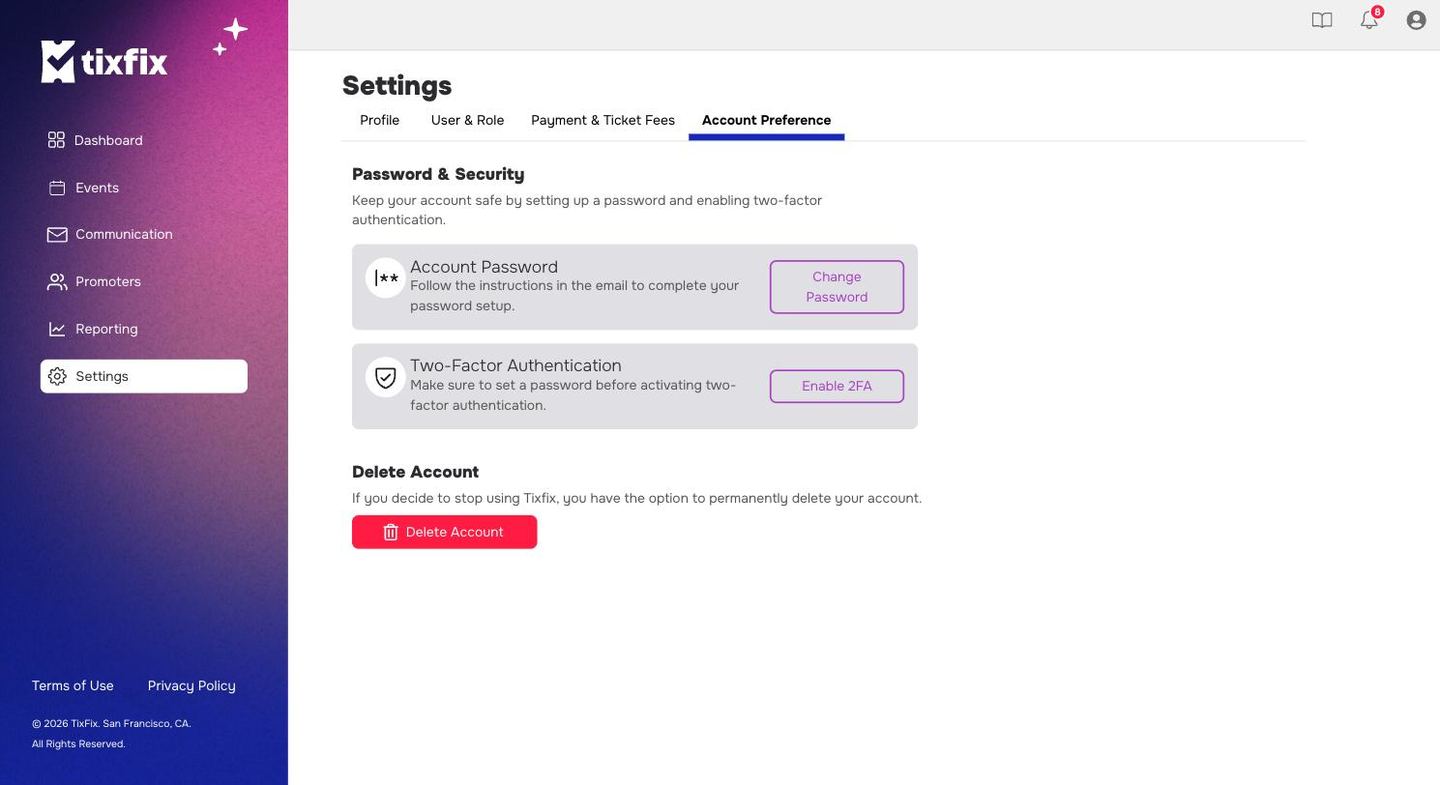
Your TixFix account controls live events, attendee data and a connected Stripe account. Everything in this section sits in `Settings → Account Preference`.
 ***
## Password and security
The **Password & Security** block holds two controls, and they have to be used in that order.
```mermaid theme={null}
flowchart LR
A["Signed in with Google?"] --> B{"Do you have
***
## Password and security
The **Password & Security** block holds two controls, and they have to be used in that order.
```mermaid theme={null}
flowchart LR
A["Signed in with Google?"] --> B{"Do you have
a password?"}
B -->|No| C["Change Password
sets one by email"]
B -->|Yes| D["Enable 2FA"]
C --> D
D --> E["Password + second factor"]
style C fill:#9F46C5,stroke:#9F46C5,color:#fff
style D fill:#57118F,stroke:#57118F,color:#fff
style E fill:#2B2BB0,stroke:#2B2BB0,color:#fff
```
### Set or change your password
Click `Settings` in the left sidebar, then the `Account Preference` tab.
TixFix emails you rather than changing it in the browser.
The panel says so explicitly: *Follow the instructions in the email to complete your password setup.* Nothing changes until you do.
Because the flow runs through email, the address on your account has to be one
you can actually reach. If it isn't, fix that in
[Settings → Profile](/get-started/organizer-profile) first.
### Two-factor authentication
Two-factor authentication asks for a second proof of identity on top of your password, so a leaked password alone is not enough to get in.
**Set a password before enabling 2FA.** The panel states the requirement
directly: *Make sure to set a password before activating two-factor
authentication.* Accounts created through `Sign in with Google` may not have
one yet.
If you have only ever signed in with Google, set one first using the steps above.
In the Two-Factor Authentication block on the same tab.
Keep whatever recovery method you are given somewhere you can reach without your phone.
***
## Who should have 2FA
Anyone who can move money or change an event. In practice that means every **Admin** on your organization, because an Admin can reach your Stripe connection, your payouts and your attendee list.
**Scanner Plus** users are lower risk — they can only check attendees in for the events assigned to them, and cannot see revenue or settings. Enabling it for them is still worth doing, but it is not the urgent case.
See [Team members and roles](/get-started/team-and-roles) for what each role can reach.
***
## Delete your account
At the bottom of the tab, the **Delete Account** block reads: *If you decide to stop using TixFix, you have the option to permanently delete your account.*
Deletion is permanent. Before you click it, work through what depends on the
account:
* **Live events** stop being managed by anyone. Cancel or hand them over first.
* **Attendees holding tickets** need to be told and, where appropriate, refunded.
See [Transfer or cancel a ticket](/attendees/transfer-or-cancel).
* **Money in flight.** A Stripe payout that has not settled needs to land
before you remove the account it belongs to. See [Payouts](/payments/payouts).
* **Records you will want later.** Export your attendee lists and note your
sales figures first — see [Export attendees](/attendees/export-attendees)
and [Sales reports](/reporting/sales-reports).
If you only want to step away for a season, leaving the account in place with no
published events costs nothing and keeps your history.
***
## If something looks wrong
Signs worth acting on immediately: a team member you do not recognise in
`Settings → User & Role`, an event you did not create, or a change to your
Stripe connection you did not make.
Using the steps above.
This stops a leaked password being enough on its own.
Remove anyone who should not be there. See [Team members and roles](/get-started/team-and-roles).
Confirm the linked account is still yours in `Settings → Payment & Ticket Fees`. See [Connect Stripe](/payments/connect-stripe).
Still stuck? Email [contact@tixfix.ai](mailto:contact@tixfix.ai) with your event name and a screenshot.