> ## Documentation Index
> Fetch the complete documentation index at: https://docs.tixfix.ai/llms.txt
> Use this file to discover all available pages before exploring further.
# Email preferences
> Choose how often TixFix emails you about ticket sales, and when the daily summary lands
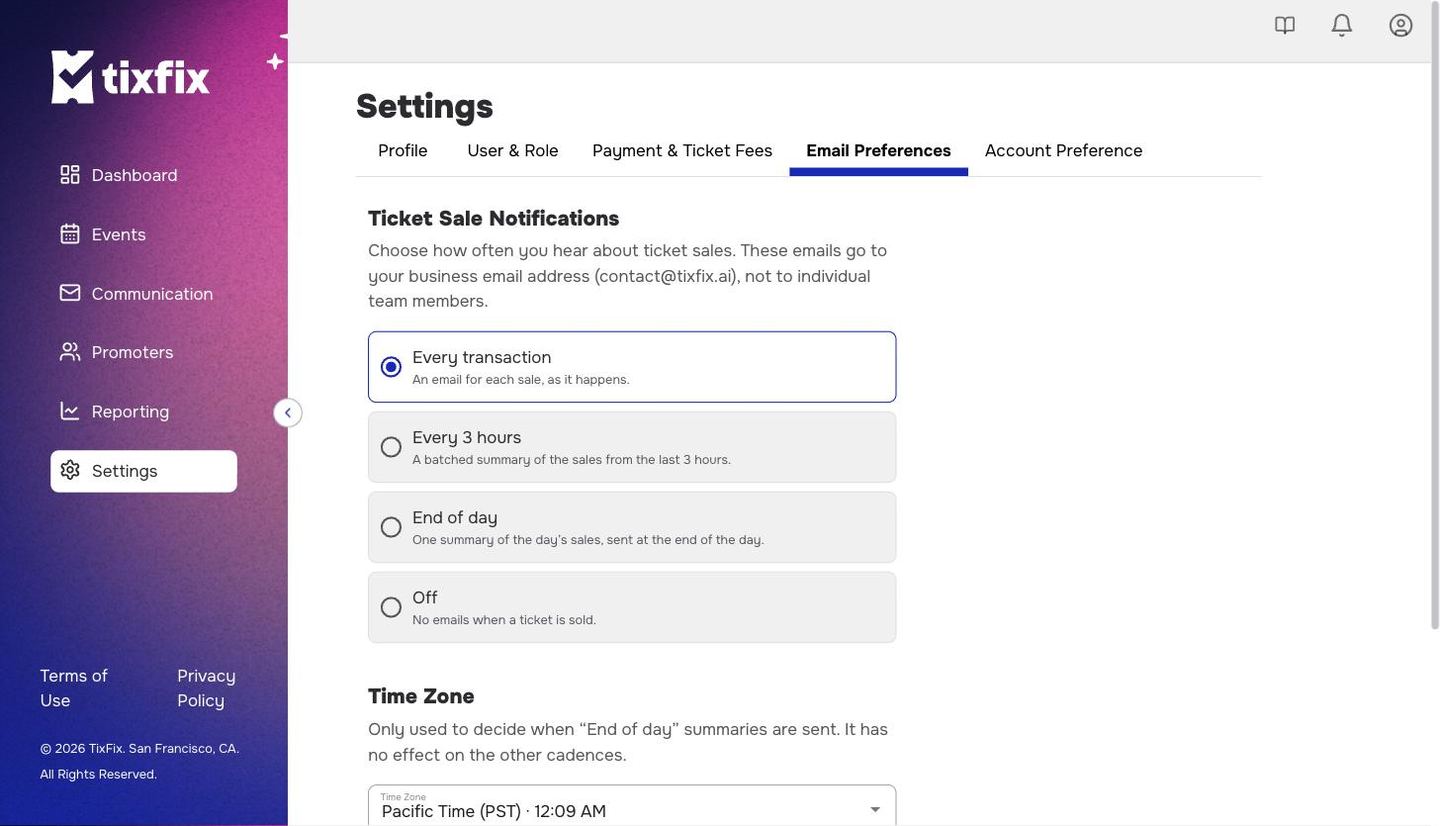
TixFix can email you when tickets sell. How often it does that is your choice, and the setting lives in `Settings → Email Preferences`.
 These emails go to your **business email address** — the one on
[Settings → Profile](/get-started/organizer-profile) — not to individual team
members. Adding someone under [Team & roles](/get-started/team-and-roles) does
not subscribe them to sale notifications.
***
## Choose a cadence
Pick one of four options under `Ticket Sale Notifications`. The choice applies to your whole organizer account, not per event.
| Option | What arrives |
| - | - |
| **Every transaction** | One email per sale, as it happens |
| **Every 3 hours** | A batched summary of the sales from the last 3 hours |
| **End of day** | One summary of the day's sales, sent at the end of the day |
| **Off** | Nothing when a ticket is sold |
Click `Settings` in the left sidebar, then the `Email Preferences` tab.
Click the option you want. The selected one is outlined.
Nothing changes until you save.
### Which one to pick
**Every transaction** suits a small event where each sale still matters, or the first days of an on-sale when you want to feel the demand. It becomes noise fast — a busy on-sale can mean hundreds of emails in an evening.
**Every 3 hours** is the usual middle ground: you stay close to the numbers without a full inbox.
**End of day** is enough once an event is simply ticking along, and it is the one to choose if you would rather read a single figure than watch a stream.
**Off** does not affect anything else. Attendees still get their tickets, your team still gets the emails you send from the
[Communication](/communication/email-attendees) portal, and the
[sales reports](/reporting/sales-reports) still update. You are only turning off the notification to yourself.
***
## Set your time zone
The `Time Zone` control decides one thing: when "the end of the day" happens for the **End of day** summary.
It has no effect on the other cadences. `Every transaction` and `Every 3 hours` are driven by the sales themselves, not by the clock, so changing the time zone will not shift them.
TixFix shows the current time in the zone you have selected, along with a note about when the next daily summary will land. If your account is still on a default zone, a shortcut appears offering the zone your browser is in.
This setting is separate from an event's own time zone, which you set on the
event itself and which controls when doors open for attendees. Changing one does
not change the other. See [Event details](/events/event-details).
This documentation is built and hosted on [Mintlify](https://mintlify.com), a developer documentation platform.
These emails go to your **business email address** — the one on
[Settings → Profile](/get-started/organizer-profile) — not to individual team
members. Adding someone under [Team & roles](/get-started/team-and-roles) does
not subscribe them to sale notifications.
***
## Choose a cadence
Pick one of four options under `Ticket Sale Notifications`. The choice applies to your whole organizer account, not per event.
| Option | What arrives |
| - | - |
| **Every transaction** | One email per sale, as it happens |
| **Every 3 hours** | A batched summary of the sales from the last 3 hours |
| **End of day** | One summary of the day's sales, sent at the end of the day |
| **Off** | Nothing when a ticket is sold |
Click `Settings` in the left sidebar, then the `Email Preferences` tab.
Click the option you want. The selected one is outlined.
Nothing changes until you save.
### Which one to pick
**Every transaction** suits a small event where each sale still matters, or the first days of an on-sale when you want to feel the demand. It becomes noise fast — a busy on-sale can mean hundreds of emails in an evening.
**Every 3 hours** is the usual middle ground: you stay close to the numbers without a full inbox.
**End of day** is enough once an event is simply ticking along, and it is the one to choose if you would rather read a single figure than watch a stream.
**Off** does not affect anything else. Attendees still get their tickets, your team still gets the emails you send from the
[Communication](/communication/email-attendees) portal, and the
[sales reports](/reporting/sales-reports) still update. You are only turning off the notification to yourself.
***
## Set your time zone
The `Time Zone` control decides one thing: when "the end of the day" happens for the **End of day** summary.
It has no effect on the other cadences. `Every transaction` and `Every 3 hours` are driven by the sales themselves, not by the clock, so changing the time zone will not shift them.
TixFix shows the current time in the zone you have selected, along with a note about when the next daily summary will land. If your account is still on a default zone, a shortcut appears offering the zone your browser is in.
This setting is separate from an event's own time zone, which you set on the
event itself and which controls when doors open for attendees. Changing one does
not change the other. See [Event details](/events/event-details).
This documentation is built and hosted on [Mintlify](https://mintlify.com), a developer documentation platform.