

General, VIP, Early Bird. Each has its own quantity, price, and sales window, so you can open early-bird pricing weeks ahead and close it before general sale ends.
Ticket categories are set on the second step of the event wizard, the screen headed Almost There!
Selling by seat instead of by quantity? With reserved seating enabled, this form gains a Seat color field, and the seat map decides how many tickets each category has.
Free or paid
At the top of the step, choose one:- Paid Event — categories have prices and checkout runs through Stripe.
- Free Event — categories are still created and still have quantities, but every price is
$0.
Add a ticket category
1
Open the Almost There! step
Create a new event and click
Create and Continue, or edit an existing event and click Update and Continue.2
Choose Paid Event or Free Event
Select the radio button that matches your event.
3
Click Add New Ticket Category
The button sits directly below the ticket category table.
4
Name the category
Give it a short name such as
General or VIP, plus a description like General admission that explains what the holder gets.5
Set the quantity
Number of Tickets caps how many can be sold in this category. The sum across your categories is your event capacity.6
Set the price
Enter the price per ticket. On a free event this stays at
$0.7
Optionally cap how many one person can buy
Max per customer (optional) — Limits how many of this ticket type one
customer can buy in a single order. Leave blank for no limit.A category with a cap shows a Limit badge next to its name in the table,
so General Admission capped at two reads as General Admission · Limit 2.8
Set the sales window
Give the category a start and an end date and time. The category is only purchasable inside that window.
9
Save the category
It appears in the ticket category table with its name, quantity, price, and dates.
The ticket category table
Every category you have created is listed with four columns: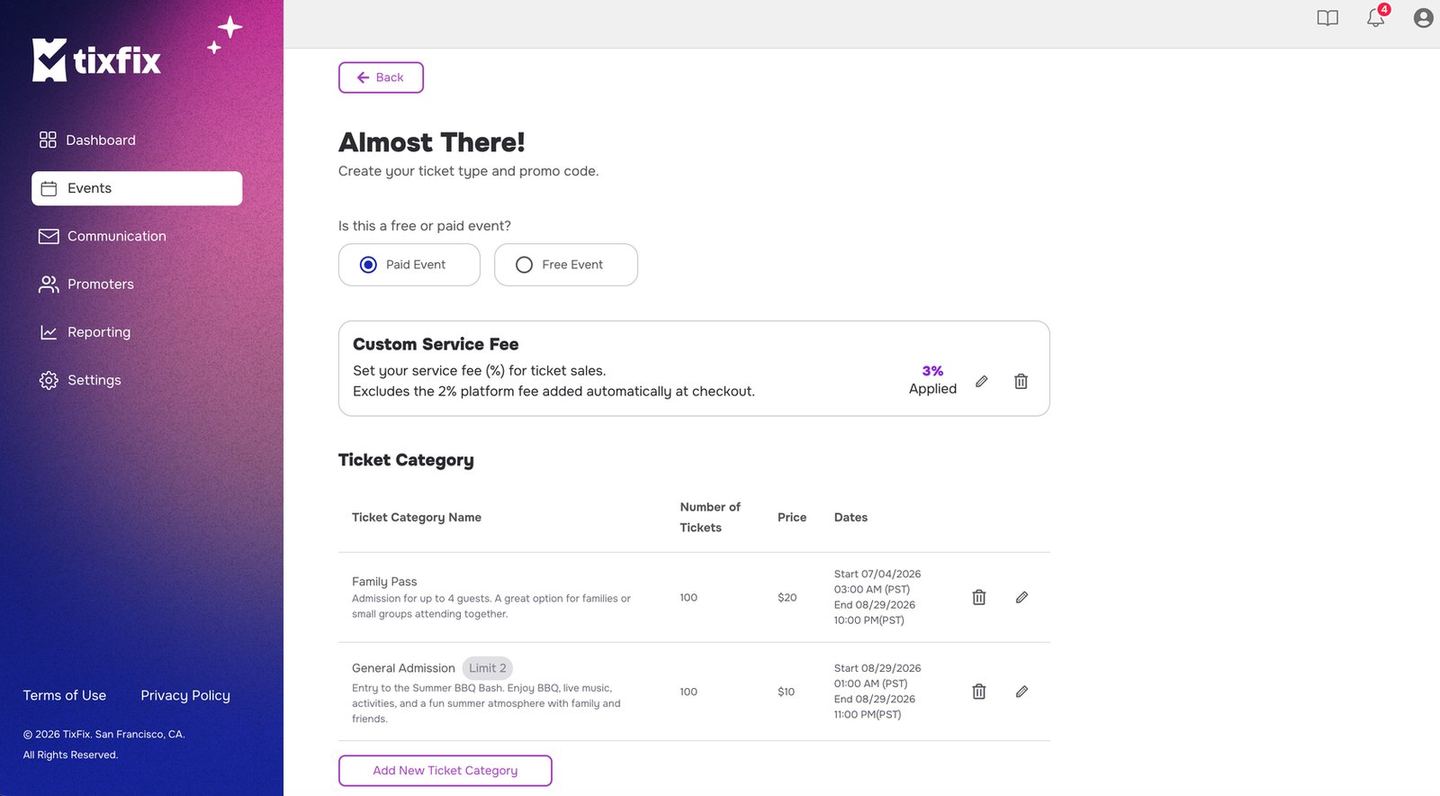
The Tickets step, showing the free-or-paid choice, custom service fee, and the ticket category table
Two icons sit at the end of each row: a trash icon to delete the category and a pencil icon to edit it.
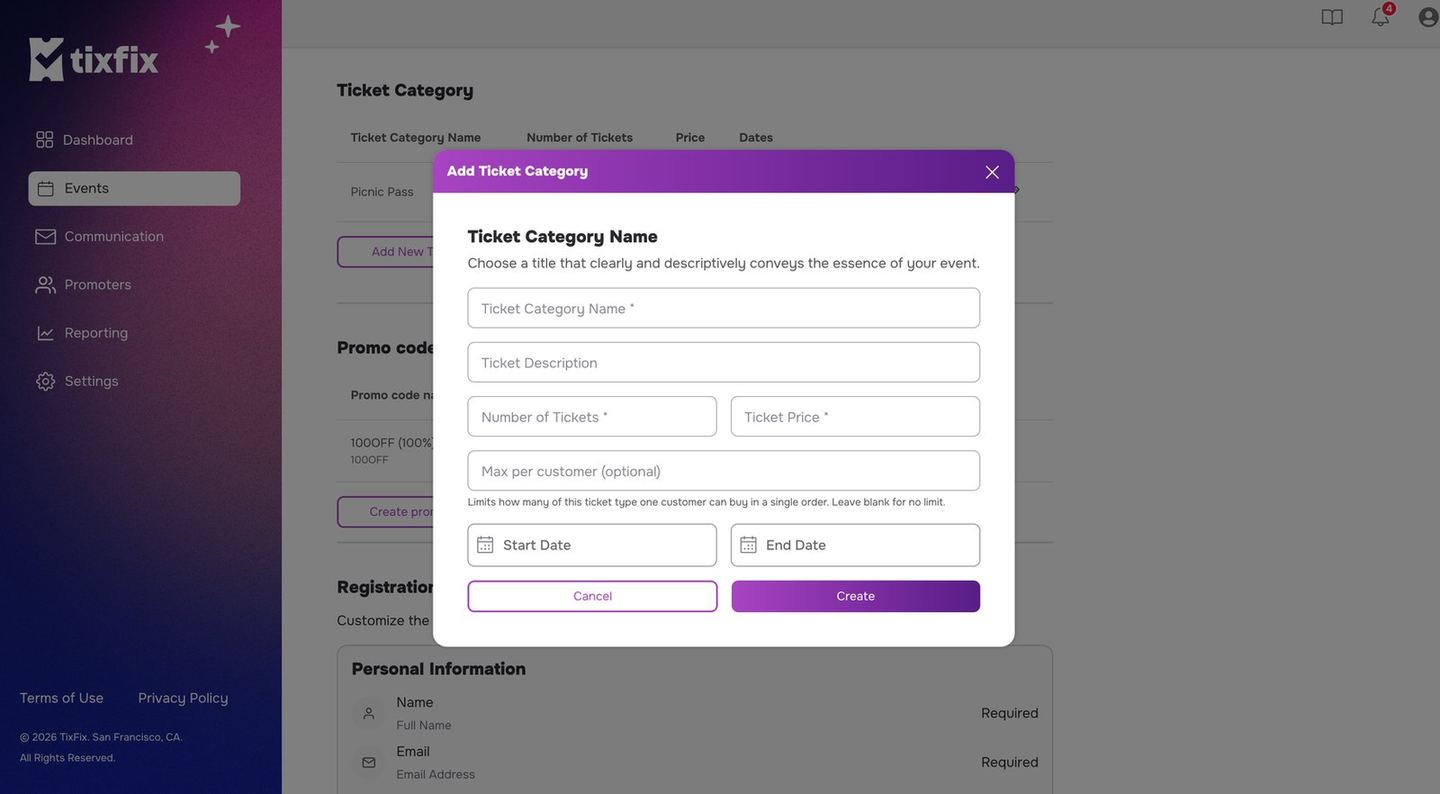
The Add Ticket Category dialog, including the optional per-customer cap
Capping tickets per customer
Max per customer is the control that stops one buyer taking a tier meant for
many people. It is worth setting on anything scarce:
- Discounted or early-bird tiers, so a single buyer cannot clear the cheap inventory and resell it.
- Limited premium tiers, where the point is that few people have one.
- Free events, where there is no price to discourage over-claiming and no-shows cost you the room.
The cap applies per order, so it limits how many of that category one customer
can buy at once. Pair it with a promo code group discount
if you want the opposite behaviour — rewarding people for buying several.
Sales windows
Categories in one event can have completely different windows. A common pattern:Early Bird— opens now, closes three weeks before the event.General— opens three weeks before, closes at doors.VIP— opens now, closes the afternoon of the event.
Editing after publishing
You can add, edit, and remove ticket categories after an event is live.How fees appear
You choose per event whether to absorb these fees or pass them to attendees at checkout.
Full detail, including a worked example: Service and processing fees.